Attach a note to an app
Keep a checklist with Xcode, research with Safari, or meeting notes with your calling app.
 AnchorNotes
Keep checklists, commands, and reminders with the Mac apps where you need them. Your notes appear when you return to an app and hide when you move on.
Free to download · Requires macOS 15 or later
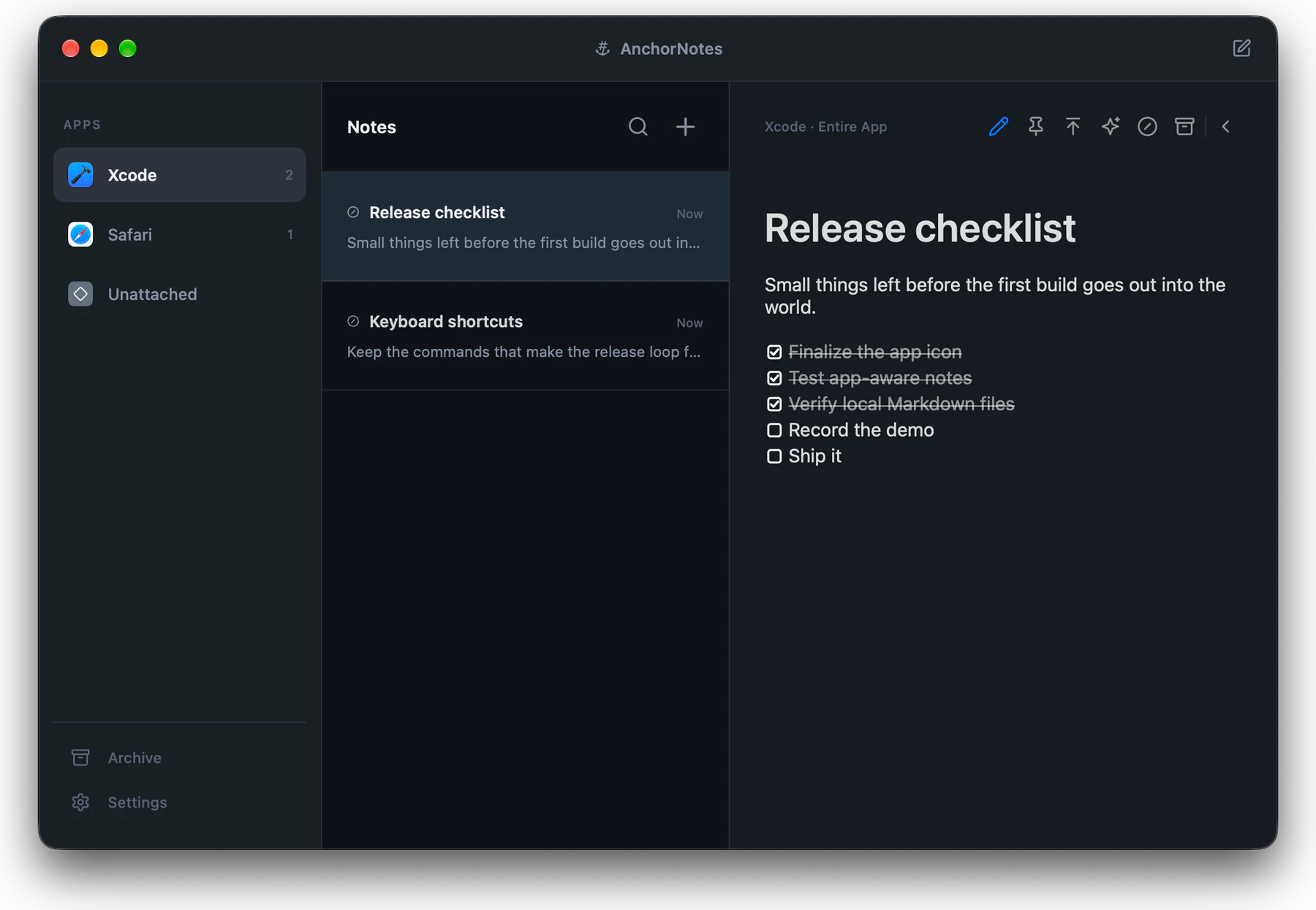
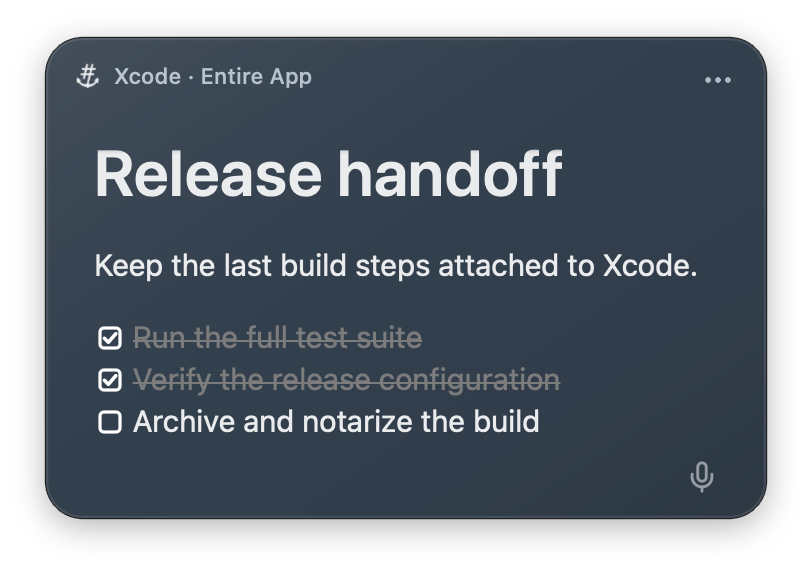
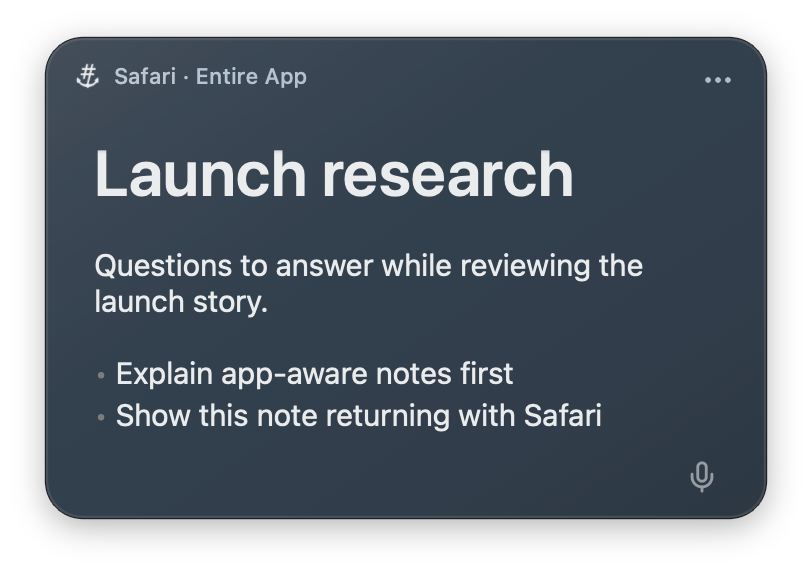
Keep a checklist with Xcode, research with Safari, or meeting notes with your calling app.
Move on to another app. Notes attached to the app you leave get out of the way.
Come back to an app and its notes reappear where you left them, ready to help you pick up the work.
Capture a thought without leaving your app. One shortcut creates a note attached to it, ready when you come back.
Notes stay with their app across Spaces and full-screen views. Choose separate arrangements for windowed and full-screen apps.
Drag notes to rearrange. AnchorNotes remembers each note’s size and position.
Drag to move, or use the arrow keys. Hold Shift for larger steps.Move to the right edge to reveal. Move away to hide.
Write formatted Markdown directly. Add headings, links, code, and checklists you can tick off as you work.
Paste screenshots with Command–V. See them inline and double-click to open them in Quick Look.
Keep actions close with Toolbar, or use Compact for a quieter note. Choose your mode in Settings → Appearance.
Formatting and note actions beside the active note.
A small More menu and microphone inside the note.
Browse notes grouped by app, or search their titles and content. Your library brings everything together in one place.
Your notes are readable files on your Mac. Open them in another editor or back up your library with your own tools. No account required, and AnchorNotes doesn’t collect your note content.
About backups# Release checklist
- [x] Test the latest build
- [x] Update the release notes
- [ ] Ship itA little extra help, when you need it.
Speak, review the live transcript in the main editor, and insert it into your note. Audio is processed on your Mac.
macOS 26 · No Apple Intelligence required
Shorten, polish, or reorganize a note with your own instructions. Rewriting runs on your Mac.
macOS 26 · Apple Intelligence required
Using two windows of the same app, even on different screens? Attach different notes to each—keep a checklist beside one window and reference notes beside the other.
Experimental · Session only · Support varies by app
Set up window attachments$0Free forever
Start with 5 active notes and every feature. Keep using them for as long as you like.
$9.99USD · One-time purchase
Need more room? Unlock unlimited active notes with one purchase.
US price shown. Apple sets localized prices by region.
AnchorNotes requires macOS 15 or later. Dictation and rewriting require macOS 26. Rewriting also needs a Mac that supports Apple Intelligence, with Apple Intelligence enabled. Dictation does not require Apple Intelligence.
Yes. Free includes every feature and up to 5 active notes, with no time limit. Pro unlocks unlimited active notes for a one-time purchase of $9.99 USD. There is no subscription. Prices vary by region.
An active note is any note that has not been archived, even when it is hidden because another app is in front. Free includes 5 active notes in total across all apps, including unattached notes. Archive a note to make room; archived notes do not count toward the limit. Restoring one uses an active-note slot again.
With AnchorNotes running, switch to the app you want to attach a note to and press Option–Command–N. Write your note, switch to another app, then return to see it again. To browse your notes, choose Show AnchorNotes from the menu bar icon. You can check or change the shortcut in Settings.
On your Mac, as plain Markdown files in the AnchorNotes folder. Choose Open Notes Folder from the menu bar icon to find them in Finder. Separate files remember each note’s app, appearance, and position; pasted images are kept in an attachments folder. Back up the whole folder to keep everything together.
Yes. Quit AnchorNotes, then back up the entire AnchorNotes folder, including hidden files and the attachments folder. This preserves active and archived notes, pasted images, and each note’s saved appearance and position. The Support page explains how to restore a backup.
AnchorNotes has no built-in cloud sync or setting to move its library to a cloud folder. Simply moving the folder does not make the app use the new location. Back up your notes with your own tools; any third-party service you use has its own terms and privacy policy.
Attach a note to a Mac app, or leave it unattached so it stays available as you switch apps. For a specific window, enable experimental window attachments in Settings. Support varies between apps. When the window closes, either app restarts, or you disable the feature, the note returns to the entire app and keeps its content. Notes attach to windows, not individual files or browser tabs.
On macOS 26, click the microphone in the note or its toolbar and speak. Choose Finish Dictation to insert your words at the current selection, or press Escape to cancel. In the main editor, you can review the live transcript before inserting it. Speech is processed on your Mac, and AnchorNotes does not store the audio. Dictation does not require Apple Intelligence.
Give AnchorNotes an instruction to shorten, polish, or reorganize a note. Apple’s on-device model handles the rewrite on your Mac. This requires macOS 26 and a Mac with Apple Intelligence enabled.
Window attachments work without it, using numbered window labels. The optional Show window names action requests Screen Recording access because macOS protects other apps’ window titles with that permission. AnchorNotes uses it to read window names locally; it does not capture your screen.
Start with 5 active notes and every feature, free. Need more? Upgrade once.
Download on the Mac App Store